
PvZ2: Reflourished
Install on a Mac
Two minutes, once. After that the app updates itself and asks before it installs anything.
Steps
Open the disk image
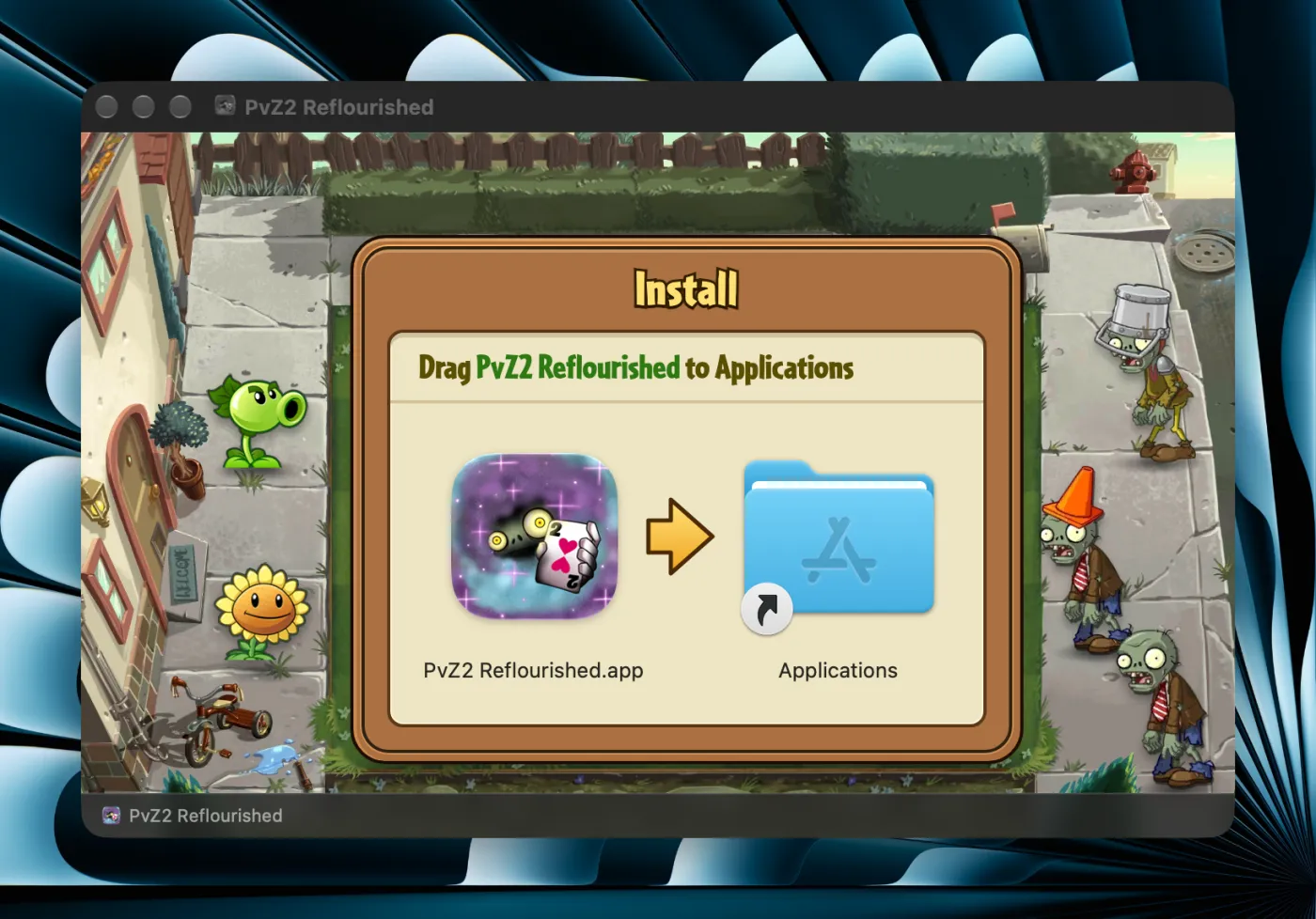
Double-click the .dmg you downloaded. A window opens with the app and your Applications folder.
Drag the app onto Applications
Then eject the disk image; you won't need it again.
Open it, and allow it once
The app isn't notarized, so the first time macOS refuses to open it. Click Done, open System Settings → Privacy & Security, scroll down and click Open Anyway.
Keep it open on Wi-Fi the first time
The slim app downloads the game's data (about 1.3 GB) and checks it before the game starts. The full .dmg has the data inside and skips this step.
Where your saves live
With the app, in ~/Library/Application Support/PvZ2 Reflourished. Updates keep them. To bring a save over from Android, use Import/Export in the game's own settings.
Settings
Settings (⌘ ,) lets you change the keys, the window's shape (any shape from 4:3 to 21:9) and its sharpness.
Updates
The app checks for a new version once a day and asks before it installs it (PvZ2 Reflourished → Check for Updates…). Your saves stay.
If it won't open
- "Apple could not verify…": that is the first-launch check from step 3. Use Open Anyway in Privacy & Security.
- An Intel Mac: the app needs Apple silicon (M1 or later).
- macOS 13 or older: the app needs macOS 14 or later.
More in FAQ and troubleshooting.